Some workloads still need a full virtual machine: a Windows desktop, software that will not run in a container, or in my case a disposable testbed for kernel vulnerability work, where the point is that the machine gets broken and thrown away. KubeVirt lets those VMs run on the same Kubernetes cluster as everything else, managed with the same kubectl apply.
KubeVirt does not give you an OS image to boot, or a way for a person to reach the VM. This post automates both. Packer builds Ubuntu and Windows images with no one at the installer. VMs boot from them in about a minute, next to your ordinary pods, and Apache Guacamole puts each desktop in a browser with nothing to install on the client.
When I set this up, I found guides for building VM images and guides for remote access, but nothing that joined the two. The Packer plugin for KubeVirt also turned out not to be ready for this, so I run a fork of it. Everything here is in the repo.
Quick start
Three commands get you an Ubuntu desktop in a browser. The first run takes about half an hour, almost all of it unattended:
make cluster                     # kind + KubeVirt + CDI      (~10 min)
make golden-ubuntu               # one-time image build       (~20 min)
make vm OS=ubuntu NAME=lab1      # boot, then print a link    (~1 min)
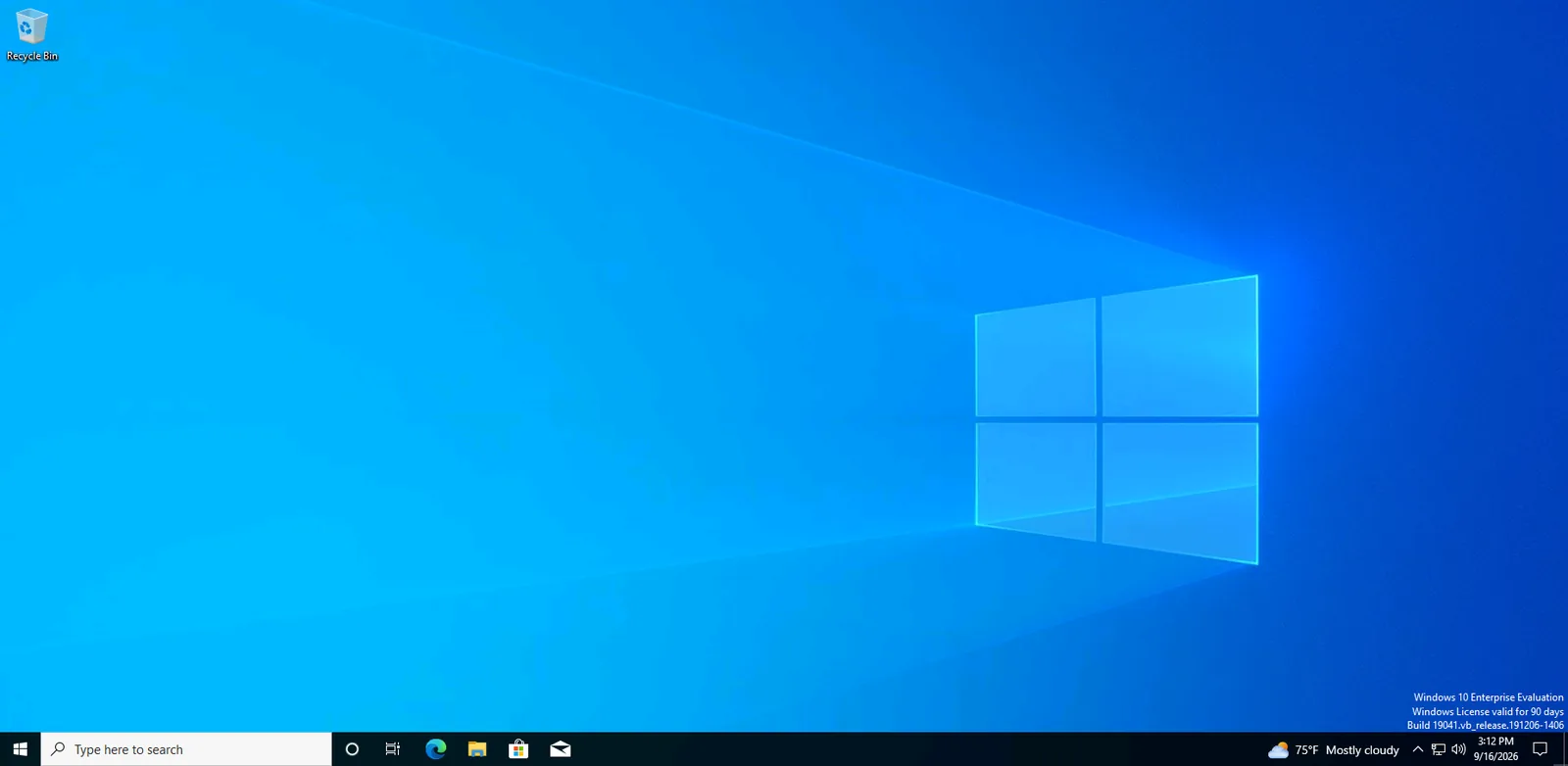
Windows works the same way. The installer ISO is downloaded for you:
make golden-windows              # fetch ISO + Packer build   (~45 min)
make vm OS=windows NAME=win1
Each make vm prints a URL. Open it and the desktop is there, already logged in.
What you need
Hardware virtualization. These are real QEMU/KVM virtual machines, so the host needs /dev/kvm. On a cloud instance, enable nested virtualization first. Without it, VMs only run under emulation, where Ubuntu is sluggish and Windows is unusable.
ls -l /dev/kvm # must exist and be readable
Tools. docker, kind, kubectl, packer, virtctl, git and go. Windows also needs xorriso, 7z (p7zip-full) and curl to fetch and repack the installer ISO.
Capacity. About 8 GB of RAM and 60 GB of disk for Ubuntu alone. With Windows, about 16 GB of RAM and 120 GB of disk, mostly for the 5.5 GB installer ISO, its repacked copy and a 64 GiB image. Disk for each VM after that is nearly free (see Step 3), but memory is not: on 16 GB I could run one Windows 10 VM and one Ubuntu VM together, and could not run two Windows VMs.
How the pieces fit
The four projects:
- KubeVirt runs virtual machines as Kubernetes objects.
- CDI (the Containerized Data Importer) turns installer ISOs into Kubernetes storage.
- Packer installs and configures the OS once, producing a golden image.
- Guacamole turns a VNC or RDP connection into something a browser can display.
Fixes for what broke along the way are in the troubleshooting section at the end.
make cluster prepares kind, KubeVirt and CDI.
- Ubuntu ISOWindows ISO The installer, as downloaded.Repacked with Autounattend.xml inside. 01 CDI import
- Installer PVC A disk Kubernetes can attach to a VM. 02 Packer build
- Golden PVC Ubuntu and XFCE, installed once, then generalized.Windows and RDP, installed once, then Sysprep. 03 overlay, no copy
- Desktop VM Reads the golden PVC. Writes go to its own layer. 04 Guacamole
- Browser tab The desktop, over VNC.The desktop, over RDP.
make golden-ubuntuCDI downloads the Ubuntu ISO into a PVC: a disk that Kubernetes can attach to a VM.
Read about the clusterThe project’s workflow documentation describes each handoff.
Step 1: VMs as Kubernetes objects
KubeVirt runs real QEMU/KVM virtual machines on Kubernetes. You get a VM’s isolation and a VM’s boot time.
For every running VM, KubeVirt creates an ordinary pod called virt-launcher and runs the QEMU process inside it. The scheduler sees a pod and places it like any other.
You write a VirtualMachine object. KubeVirt creates a VirtualMachineInstance, the running instance, in the same way a Deployment creates Pods. On a node, a qemu-system-x86_64 process starts with a disk and a network card.
The disks come from CDI. Give CDI a URL or an upload of an ISO and it produces a DataVolume: a PVC with a step that fills it. That is how installer media gets into the cluster.
make cluster creates a single-node kind cluster (kindest/node:v1.35.0), installs KubeVirt v1.8.2 and CDI v1.65.0, and waits for both to report Available. It is safe to re-run.
Step 2: Build a golden image with Packer
Installing an operating system takes about twenty minutes for Ubuntu and forty-five for Windows. You do not want to do that for every VM.
So the install happens once, and the result is a golden image: a disk with the OS installed and configured, stored as a PVC, which every later VM boots from.
Packer builds it with a fixed loop:
- Create a temporary VM and boot it from the installer ISO.
- Drive the installation without a human.
- Connect to the installed system and run provisioning scripts.
- Shut it down and keep the disk.
The temporary VM is itself a KubeVirt VM, in the same cluster your workloads run in. Packer never talks to a hypervisor directly. It creates a VirtualMachine, waits, and connects to the guest through a port-forward over the Kubernetes API: SSH for Ubuntu, WinRM for Windows.
This means the VM that builds the image and the VMs that later run it have the same firmware, the same virtio devices and the same network model. If an image boots for Packer, it boots when you run it for real.
Two ideas make the build work for both operating systems:
- An answer file. An installer normally stops to ask for language, disk layout, username and password. An answer file supplies those answers in advance. Ubuntu calls it autoinstall. Windows calls it
Autounattend.xml. - Generalizing. A golden image becomes many machines, so anything unique to the build VM (hostname, SSH host keys, machine ID, Windows security identifiers) must be removed, or every VM will share it.
The build uses the kubevirt-iso builder from packer-plugin-kubevirt. The repo builds and installs a fork that adds three things this pipeline needs: a configurable label for the answer-file disk, UEFI firmware on the build VM, and cleanup of resources left behind by a failed run.
Step 2a: The Ubuntu image
Ubuntu reads its answer file through cloud-init’s NoCloud datasource. It scans attached disks for one labelled cidata and reads user-data and meta-data from it. The Packer template attaches that disk:
media_files_label = "cidata"
Even with the answer file present, the Ubuntu installer only runs unattended if the kernel command line says autoinstall. Packer edits the GRUB entry by typing into the VM’s console:
boot_command = [
  "e<wait2>",
  "<down><down><down><end>",
  " autoinstall",
  "<f10><wait>"
]
The answer file installs the system, adds qemu-guest-agent, and ends with shutdown: poweroff. Packer takes the stopped VM as the sign that the install finished and did not hang.
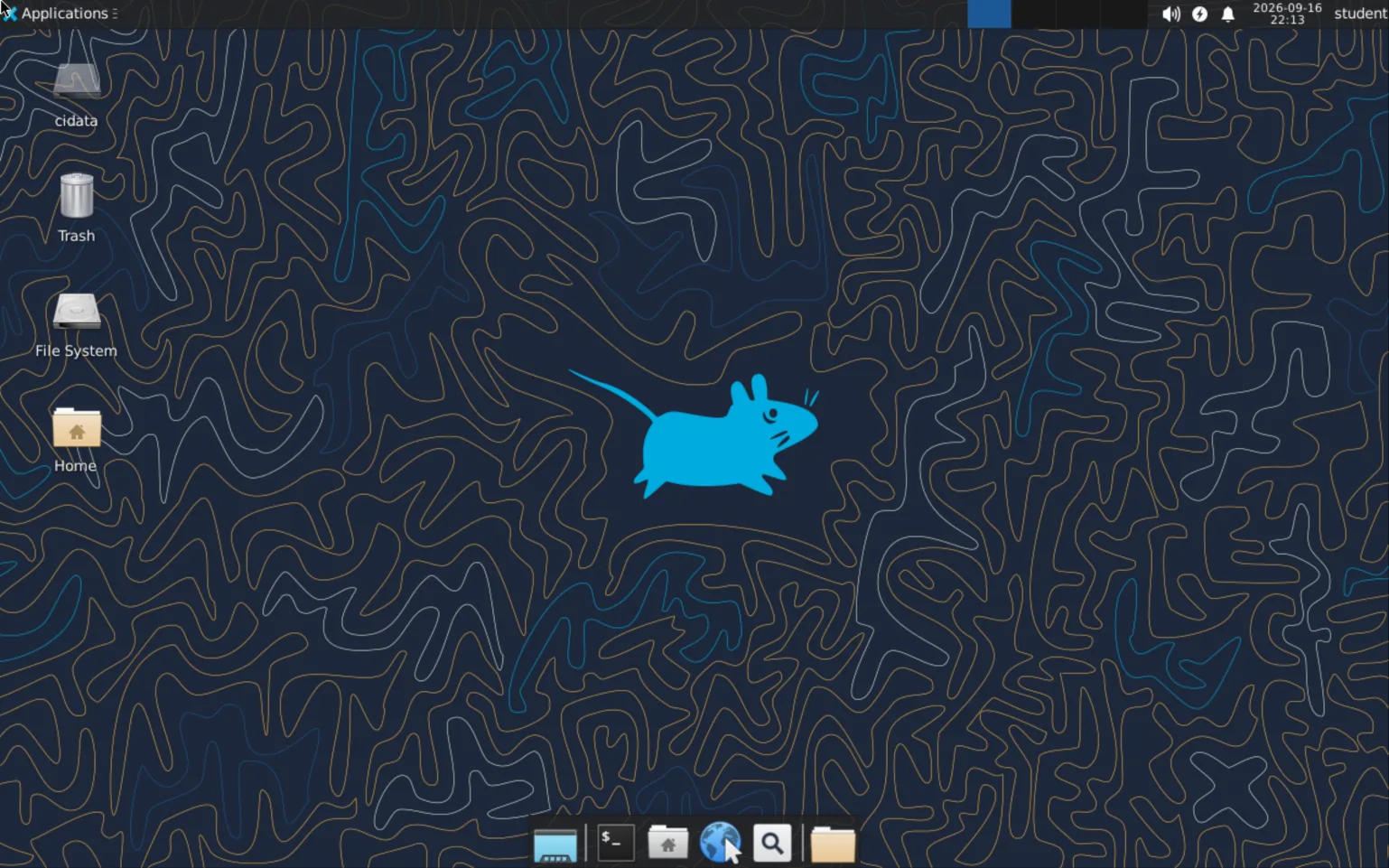
Packer then boots the installed system, connects over SSH and runs the provisioning script. It installs XFCE, LightDM with automatic login for a student user, and x11vnc sharing the running desktop on port 5900.
The last step generalizes the image:
cloud-init clean --logs --seed
rm -rf /var/lib/cloud/instances /var/lib/cloud/data
truncate -s 0 /etc/hostname
truncate -s 0 /etc/machine-id    # empty, not deleted
Deleting /etc/machine-id instead breaks networking on the next boot; the troubleshooting section explains why.
Step 2b: The Windows image
Windows took more work.
Windows Setup did not read Autounattend.xml from a KubeVirt sysprep volume or from a second disk. It did read it from the installer ISO itself. So make golden-windows repacks the ISO:
- Download the public Windows 10 22H2 Enterprise Evaluation ISO and verify its size and SHA256.
- Extract it with
7z. Microsoft’s media is UDF, and mounting UDF needs root, while7zdoes not. - Copy
Autounattend.xmlinto both the ISO root andsources/. Setup searches both places at different stages. - Rebuild the ISO with
xorriso, keeping both the BIOS and EFI boot images. - Upload it to CDI with
virtctl image-upload.
Windows Setup runs in phases, and an answer file gives settings for each phase separately. This is the order the build uses:
windowsPE    VirtIO storage driver, partition disk, install
specialize   locale, skip activation
oobeSystem   reseal into AUDIT MODE, Administrator autologin
auditUser    1. install-misc.ps1  VirtIO drivers + guest agent
             2. set-network.ps1   network profile → Private
             3. enable-winrm.ps1  PSRemoting, open TCP 5985
                                        ↓
                                 Packer connects
windowsPE is the small Windows environment the installer runs in. Windows has no built-in driver for KubeVirt’s paravirtual disk controller, so the VirtIO storage driver must load in that phase. Without it, Setup finds no disk to install to.
Normally Setup ends in OOBE, the out-of-box experience that asks the first user for a region and keyboard layout. Audit mode skips that. Windows reboots into a desktop logged in as Administrator and runs a list of commands in order.
The three scripts must run in that order. The VirtIO drivers come first because the network does not work without them. WinRM comes last because opening it is the signal Packer waits for.
Step 2c: Finishing the Windows image
Once WinRM is open, Packer connects and runs setup.ps1. It:
- creates the
studentaccount and adds it to Administrators and Remote Desktop Users, - enables RDP and its firewall rules,
- disables Windows Update,
- writes the answer file for the VMs’ first boot into
C:\Windows\Panther, - closes the sysprep window that audit mode opens on the desktop.
Then Packer generalizes the image with sysprep. Sysprep removes the machine’s security identifiers and installation-specific state so VMs built from the image do not collide:
provisioner "windows-shell" {
  inline = [
    "C:\\Windows\\System32\\Sysprep\\sysprep.exe /generalize /oobe /shutdown /mode:vm"
  ]
  valid_exit_codes = [0, 1115, 1116]
}
Sysprep shuts the VM down, which drops the WinRM connection Packer is using. Exit codes 1115 and 1116 are accepted so that expected disconnect is not treated as a failure.
The result is a 64 GiB golden image, windows-golden, ready to boot into OOBE on its next start.
Step 3: Run VMs from the golden image
Starting a VM is fast because nothing is copied. The root disk is an ephemeral volume on top of the golden PVC:
volumes:
- name: rootdisk
  ephemeral:
    persistentVolumeClaim:
      claimName: ubuntu-golden
KubeVirt mounts the golden PVC read-only and adds a private copy-on-write overlay on node-local storage. Writes go to the overlay; reads fall through to the shared image. A new VM starts with an empty overlay instead of a copy of the 64 GiB disk. That cut VM start from about four minutes to about one.
The trade-off is that changes do not persist. A reboot inside the guest keeps the overlay. Deleting or stopping the VMI discards it, and the next start begins from the clean image.
On Windows, every fresh overlay is the sysprepped image, so OOBE runs on every start, not only the first. make vm mounts the answer file as a sysprep ConfigMap:
volumes:
- name: sysprep
  sysprep:
    configMap:
      name: windows-pool-unattend
Without it, the VM stops at the region-select screen waiting for input.
make vm OS=ubuntu NAME=lab1 checks the golden image exists, deploys Guacamole if needed, applies the VM, waits for it to be Ready, and runs the connect script. Run it again with another NAME for another VM.
Step 4: Reach the desktop
KubeVirt includes a console, virtctl vnc, which streams the VM’s virtual display through the Kubernetes API. This pipeline does not use it. It shows the hypervisor’s display, and a Windows desktop needs RDP.
Instead, each golden image runs its own remote desktop server inside the guest: x11vnc on port 5900 for Ubuntu, and Windows’ built-in RDP on port 3389. To the cluster, both are a TCP port. The OS-specific part of the connect script is two variables:
case "$OS" in
  ubuntu)  PROTOCOL=vnc; PORT=5900 ;;
  windows) PROTOCOL=rdp; PORT=3389 ;;
esac
Each VM gets an ordinary ClusterIP Service:
selector:
  kubevirt.io/vm: lab1
A Service cannot select a VM directly; Services select pods. This works because of the virt-launcher pod from Step 1. The pod carries the VM’s labels, so the Service routes to it, and KubeVirt’s masquerade networking forwards traffic from the pod into the guest. The VM is reached like any other workload in the cluster.
Step 5: Open it in a browser
Browsers do not speak VNC or RDP. Apache Guacamole bridges the gap in two parts:
guacdmakes the actual VNC or RDP connection and translates it.- The Guacamole web application serves the browser client and streams to it over a WebSocket.
MySQL stores connections, users and permissions. An nginx proxy in front serves everything on NodePort 30000.
Keypresses go down to the guest; screen updates come back up.
- Browser The tab holding the link. HTTP, then a WebSocket
- nginx NodePort 30000, the single origin. same origin, headers kept
- Guacamole Holds the session. MySQL keeps users and connections. Guacamole protocol
- guacd Speaks the guest's remote desktop protocol. VNC, TCP 5900RDP, TCP 3389
- Service Selects the virt-launcher pod. masquerade, into the guest
- Ubuntu VMWindows VM x11vnc shares the XFCE session.The RDP server built into Windows.
The nginx proxy is required. Serving everything from one origin lets the WebSocket tunnel get its upgrade headers, and lets the ?token= in the printed link work: Guacamole only accepts a token in the query string when the request comes from its own origin. With Guacamole on a separate NodePort, the link opens a login form instead of a desktop.
The token in each link belongs to a throwaway Guacamole account created for that one VM. It has read access to exactly one connection and is recreated on every run. Do not hand out the admin token instead: anyone holding that link could list every other connection and read its password in plaintext.
Tokens expire after 60 idle minutes. make vm-url NAME=lab1 OS=ubuntu prints a fresh link.
Step 6: Know when the desktop is ready
Ready on a KubeVirt VMI says nothing about the guest unless you add your own readiness probe. Without one, it follows the virt-launcher pod: QEMU is running, so the VMI is Ready. The guest agent reports separately through the AgentConnected condition, and the agent is optional.
Neither proves the desktop is reachable. The guest agent talks over virtio-serial, not the network, so AgentConnected stays true even when the guest’s network is broken. A TCP check alone is not enough either: Windows accepts connections on port 3389 before the desktop is up, so the check passes while the session still times out.
So the connect script checks three things before it prints a link:
- The VM’s Service has an endpoint.
- The guest agent reports a logged-in user session. This check is best-effort and warns after five minutes.
- A real TCP connection to the desktop port succeeds through a temporary port-forward. If this fails, the script does not print a link.
Almost every failure in this pipeline shows up in the browser as a black screen, so the script prints no link rather than a broken one.
Troubleshooting
| Symptom | Cause | Fix |
|---|---|---|
| Ubuntu installer ignores the answer file | Upstream plugin labels the media disk OEMDRV; cloud-init wants cidata | media_files_label in the forked plugin |
| Ubuntu installer starts an interactive install | Ubuntu needs autoinstall on the kernel command line | Edit the GRUB entry with boot_command |
| VM has no IP, but every Kubernetes signal is green | /etc/machine-id was deleted, so networkd cannot build a DHCP identity | truncate -s 0, do not delete |
| Black screen; LightDM never starts | x11vnc -auth guess races LightDM for its xauth file | Explicit -auth path, and wait for a live session |
| VNC login fails although the password is correct | VNC authentication uses only the first 8 bytes | Keep the password at 8 characters |
| Desktop shows a lock screen mid-session | Power manager calls xflock4, which falls back to dm-tool lock | Replace xflock4 with a no-op |
Windows Setup ignores Autounattend.xml | Sysprep volume and second disk were not read by Setup here | Inject into the ISO root and sources/ |
| Windows Setup finds no disk | No driver for the paravirtual disk controller | Load the VirtIO storage driver in windowsPE |
| Packer cannot run sysprep | Audit mode’s sysprep window is already running | Close the window before running sysprep |
| Windows VM stops at the setup wizard | Every overlay starts from the sysprepped image, so OOBE runs every boot | Mount the answer file on every boot |
| Windows reboots into OOBE over and over | A guest shutdown makes runStrategy: Always start a fresh VMI with a fresh overlay | Use runStrategy: Manual if the unattend sequence shuts down |
| VM is Ready but the desktop is unreachable | Ready follows the launcher pod; AgentConnected uses virtio-serial | Gate on a real TCP connection to the desktop port |
VMIs stay in Scheduled and never start | virt-handler has stopped processing | kubectl rollout restart ds/virt-handler -n kubevirt |
| Golden image rebuild hangs | Running VMs hold the golden PVC read-only | make clean before rebuilding |
| New Packer build refuses to start | A failed run left a DataVolume or DataSource behind | make clean-all, or delete that DataVolume |
| Link host unreachable on Docker Desktop | The kind node IP is not routable from the host | kubectl port-forward svc/guac-proxy 8080:80 |
| Everything is very slow | No /dev/kvm, or KubeVirt is running with useEmulation | Enable hardware or nested virtualization |
Ubuntu: the answer file is never found
The upstream packer-plugin-kubevirt hardcodes the media disk label to OEMDRV. That is the Kickstart convention used by Anaconda on Fedora and RHEL. cloud-init never looks for it, so the disk is attached but Ubuntu cannot see the answer file. The fork adds a media_files_label field so the template can set cidata.
Ubuntu: black screens
Three different problems all look like a black screen.
The VNC password does not match. Standard VNC authentication derives a DES key from the first eight bytes of the password and ignores the rest. A longer password fails to match what Guacamole sends. The lab password is exactly eight characters for this reason.
x11vnc stops LightDM from starting. LightDM logs Error connecting to XServer :0, gives up without starting the session, and never retries.
The cause is -auth guess. It makes x11vnc run xauth against LightDM’s authority file and create lock files next to it, at the same moment LightDM is writing that file to authenticate its own connection to display :0. It only happens on first boot from a fresh disk, where filesystem resize and SSH host key generation slow LightDM down enough to overlap with x11vnc, which is why it looks random.
The fix is an explicit -auth /var/run/lightdm/root/:0, plus a startup check that waits for a real session on :0 before x11vnc starts.
The desktop locks itself. No screen locker is installed, but xfce4-power-manager blanks the screen when idle and then calls /usr/bin/xflock4. With no locker available, it falls back to dm-tool lock, which puts the login screen over the running session. Every lock path goes through that one script, so replacing it with exit 0 fixes all of them.
Ubuntu: no network after deleting the machine ID
Generalizing removes the machine ID. The obvious way is to delete /etc/machine-id. systemd documents two valid states for a reusable image, missing or empty, but only empty worked here.
The two behave differently on first boot. A missing file makes systemd treat the boot as a first boot: it writes uninitialized, mounts a temporary file with the real value over it, and only saves the value after first-boot-complete.target. An empty file is not a first boot; the ID is generated and written normally. systemd recommends the empty file for images, because a read-only image needs a file to mount over.
With the file deleted, VMs came up without an IP address and systemd-networkd logged Failed to configure DHCPv4 client: No such file or directory. networkd builds its DHCP client identifier from the machine ID and starts well before first-boot-complete.target, That is probably the cause, but I have not confirmed it. Truncating instead of deleting fixed it, and it has not come back.
Every Kubernetes signal stayed green throughout. The VM was Running, the VMI was Ready, the guest agent was connected, and x11vnc was listening on 0.0.0.0:5900, but the VM had no IP.
Windows: the answer file is never read
Mounting Autounattend.xml as a KubeVirt sysprep volume did not work for Windows Setup, and neither did a second disk. Setup’s documented search order does include removable media, with Autounattend.xml at the root of a removable drive, so the second disk should have worked. I never found the cause. Repacking the ISO worked, so I stopped looking.
The repacked ISO has the file in two places because both are in the search order: the sources/ directory during windowsPE, and the root of the drive Setup runs from as a last resort. Writing to both means I never had to work out which location Setup uses.
Windows: sysprep refuses to start
Audit mode opens the sysprep window on the desktop automatically, and Windows refuses to run a second copy of sysprep. Packer’s command-line sysprep therefore never starts. setup.ps1 closes the window before it exits.
Windows: the setup wizard comes back
Sysprep /generalize moves C:\Windows\Panther\unattend.xml to C:\Windows\Panther\Unattend\unattend.xml, and OOBE looks there before it checks removable media. Writing the runtime answer file into Panther works. The sysprep ConfigMap covers the VMs started from the image.
A related loop: if the Windows guest shuts down rather than reboots, runStrategy: Always starts a new VMI with a new overlay, and OOBE runs again. Guest reboots are safe. If your unattend sequence ends in a shutdown, set that VM to runStrategy: Manual.
Wrapping up
Most of the time went into two things. First, making Packer drive KubeVirt at all: the plugin needed a fork before a build would finish. Second, Windows, which resisted every step of being installed without a person there. Getting Setup to read an answer file, getting a disk it would install to, and getting audit mode and sysprep to hand over an image that boots clean on every overlay took far longer than the Ubuntu side and the browser access together.
Credentials are committed on purpose so this reproduces for anyone who clones it, nothing is authenticated and there is no TLS. Keep it on a network you control.
I built this while learning KubeVirt, CDI and Packer. If something is fragile or wrong, open an issue.